Deploy a Static Website on Microsoft Azure Using Docker and Cloud-Init
A practical, step-by-step DevOps tutorial for the EpicReads learning platform

Introduction
In this tutorial, we will deploy a static website for EpicReads, an online learning platform, on a Microsoft Azure Virtual Machine using Docker and Nginx.
Rather than manually configuring every component after creating the server, we will use Cloud-Init to automate Docker installation during the VM's first boot. We will then clone the website source code from GitHub, package it into a Docker image, run it in an Nginx container, and verify that it is accessible through the VM's public IP address.
This tutorial follows all eight project tasks in sequence and includes the commands, configuration scripts, expected outputs, troubleshooting guidance, and screenshots needed to document your work.
1. Project objectives
By completing this project, you will learn how to:
- Provision an Ubuntu Linux VM on Microsoft Azure.
- Configure a public IP address and Network Security Group (NSG).
- Restrict SSH access to your own public IP address.
- Use Cloud-Init to automate Docker installation.
- Verify Docker installation and service health.
- Clone a website repository from GitHub.
- Create a Dockerfile using Nginx.
- Build and run a Docker container.
- Publish the website on port 80.
- Verify public access using a web browser.
- Troubleshoot common deployment problems.
2. Understand the deployment architecture
Internet / Website visitor
HTTP request to the VM's public IP
TCP port 80
Azure Virtual Machine
Ubuntu Linux + Docker Engine
Port mapping: VM 80 → container 80
Nginx Docker container
Serves the EpicReads static website files
Cloud-Init configures the Linux VM when it boots for the first time. Docker packages the website and its Nginx runtime into a containerized deployment.
The workflow is:
Create Azure VM
      ↓
Configure NSG and public IP
      ↓
Run Cloud-Init during first boot
      ↓
Install and verify Docker
      ↓
Clone the GitHub repository
      ↓
Create the Dockerfile
      ↓
Build the Docker image
      ↓
Run the Nginx container
      ↓
Test locally and through the public IP
3. Prerequisites
Before beginning, ensure that you have:
- An active Microsoft Azure account and subscription.
- Access to the Azure portal.
- An SSH client, such as Windows PowerShell, Windows Terminal, macOS Terminal, or Linux Terminal.
- Basic knowledge of Linux commands and Docker.
- Internet connectivity.
Choose an eligible VM
Select an Ubuntu based image and a VM size that Azure identifies as eligible for your account's free offer, if available. Eligibility and pricing depend on your subscription, region, and current offer.
Find your public IP address
From your computer, run:
curl -4 ifconfig.me
Record the address for your SSH rule. If you use a VPN or change networks, you may need to update the rule.
Security requirements
| Traffic | Port | Source |
|---|---|---|
| SSH administration | TCP 22 | Your public IP /32 |
| Website access | TCP 80 | Any IPv4 address (0.0.0.0/0) |
Never open SSH to the entire internet for this project. Do not put passwords, private SSH keys, tokens, or cloud credentials in Cloud-Init, screenshots, or GitHub.
Task 1 — Provision the Azure Virtual Machine
Step 1.1: Open the Azure portal
Go to the Microsoft Azure Portal and sign in.
Navigate to:
Virtual machines → Create → Azure virtual machine
Step 1.2: Configure the VM
Use the following settings as a guide.
| Setting | Value |
|---|---|
| Resource group | rg-epicreads |
| Virtual machine name | epicreads-static-site-azure |
| Region | A region available to your subscription |
| Image | Ubuntu LTS image with Cloud-Init support |
| VM size | An option marked eligible for your free offer |
| Authentication | SSH public key |
| Username | azureuser |
| Public IP | Enabled |
| Inbound ports | SSH (22), HTTP (80) |
The exact image and VM-size labels may differ in your portal. Verify eligibility before deploying.
Step 1.3: Configure SSH authentication
Choose SSH public key authentication. You can let Azure generate a key pair or provide an existing public key.
If Azure generates a key pair, store the downloaded private key securely. Never upload it to GitHub or include it in screenshots.
Azure's official Linux VM connection guide explains the SSH key and network requirements.
Step 1.4: Configure the Network Security Group
On the Networking tab, configure the VM's public IP and inbound network rules.
Create or verify these rules:
Rule 1 — SSH
Protocol: TCP
Destination port: 22
Source: Your public IP address with /32
Rule 2 — HTTP
Protocol: TCP
Destination port: 80
Source: Any IPv4 (0.0.0.0/0)
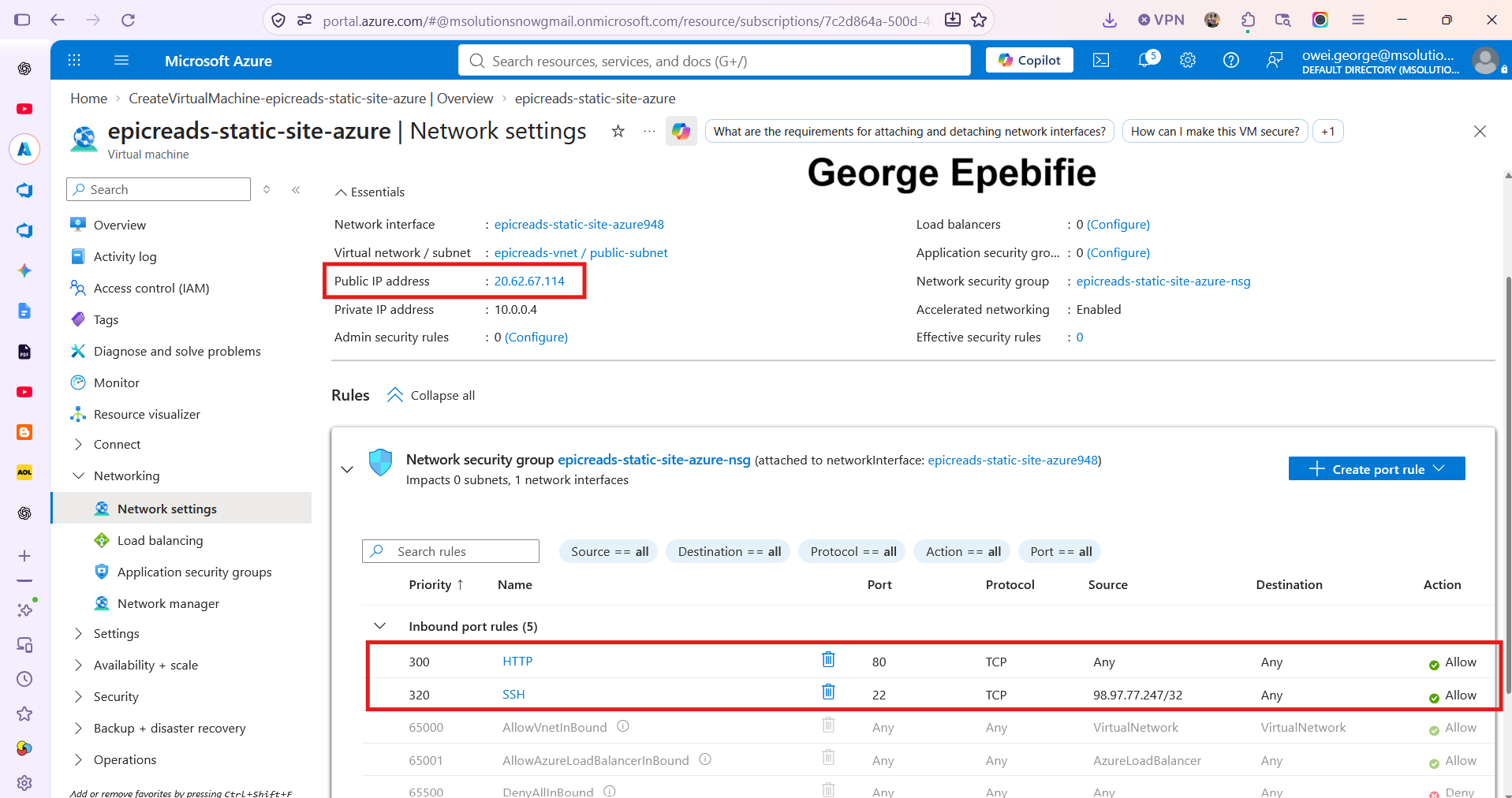
If you are using the portal's simplified inbound port selection, you may need to edit the generated SSH rule afterward to restrict its source to your IP.
Step 1.5: Add Cloud-Init under Custom Data
Before creating the VM, open the Management tab and locate the Custom data field. The exact placement may vary slightly with the portal interface.
You will paste the Cloud-Init configuration into this field.
Do not enter the script in the SSH key field, user data field intended for another purpose, or a terminal after the VM has been created.
Step 1.6: Review and create
Select Review + create, review the configuration, and select Create.
Wait for the deployment to finish. Open the VM's Overview page and confirm that its status is Running.
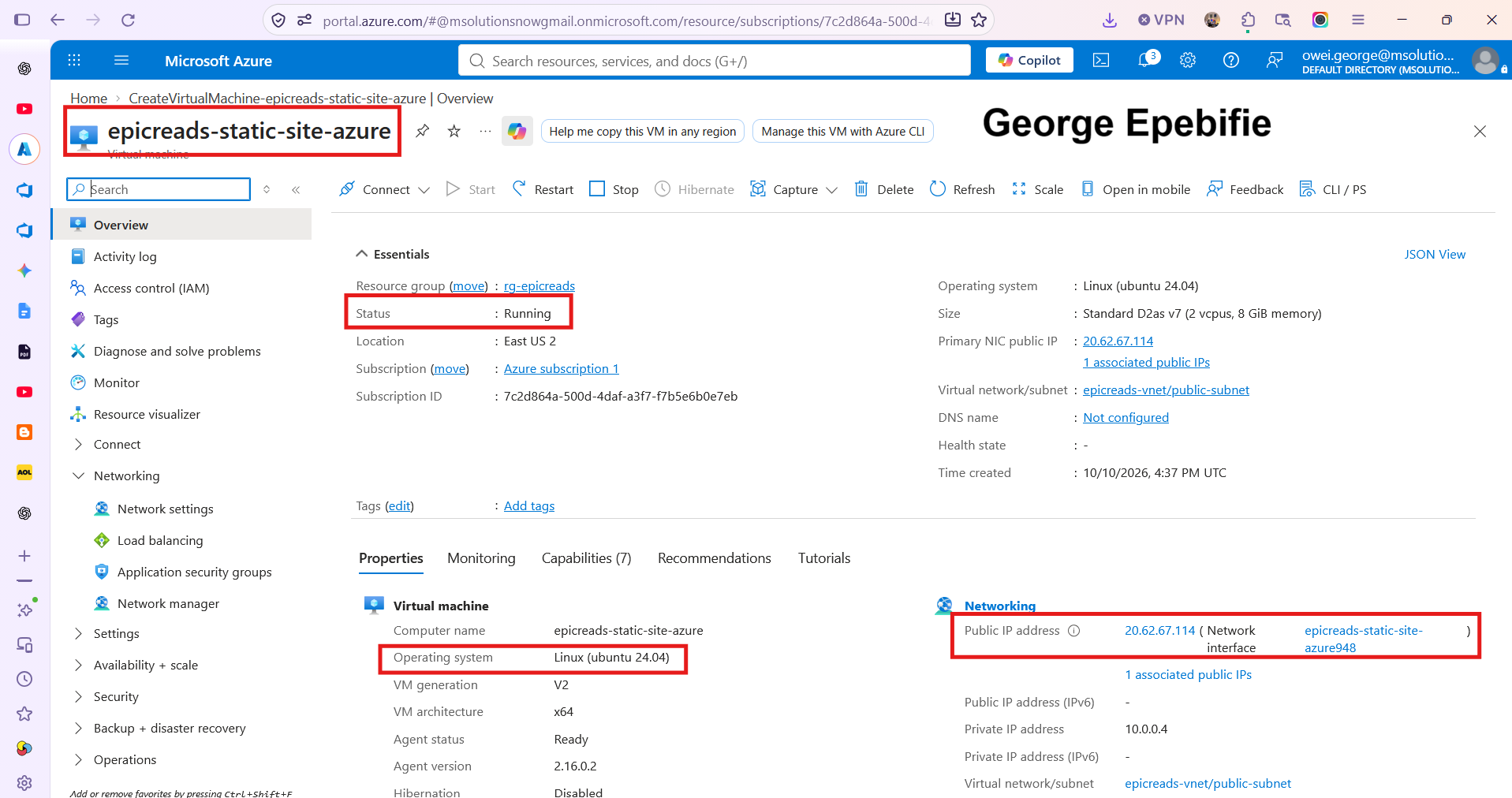
Task 2 — Automate Docker Installation with Cloud-Init
Cloud-Init runs configuration during the Linux VM's initial boot. In this assignment, it installs required packages, installs Docker, enables the Docker service, and starts it.
Step 2.1: Prepare the Cloud-Init script
Use the following configuration, based on the script supplied in your assignment.
Save it locally as cloud-init.yaml if you are preparing the file before creating the VM.
YAML
#cloud-config
package_update: true
package_upgrade: true

packages:
  - apt-transport-https
  - ca-certificates
  - curl
  - gnupg
  - lsb-release
  - git

runcmd:
  - apt-get update -y
  - apt-get install -y docker.io
  - systemctl enable docker
  - systemctl start docker
  - usermod -aG docker ubuntu || true
  - echo "Docker installation completed through Cloud-Init"
Important username note: the supplied command adds the user ubuntu to the Docker group. Azure VMs commonly use the administrator username you specified during creation, such as azureuser. If you used azureuser, the provided command will not add that account to the group. For a corrected configuration, replace that line with:
YAML
- usermod -aG docker azureuser
Use the username you actually configured. This adjustment is optional for installing Docker itself; you can still verify Docker using sudo docker ps if necessary.
The first line must remain:
YAML
#cloud-config
Do not indent it or remove it.
Step 2.2: Supply the script during VM creation
In the Azure portal:
- Open the VM creation wizard.
- Navigate to Management → Custom data.
- Paste the complete YAML configuration.
- Confirm that the first line is
#cloud-config. - Finish creating the VM.
If the VM has already been created without the configuration, do not assume that pasting it into a setting afterward will rerun first-boot provisioning. The simplest assignment-compliant approach is to create a new VM with the correct Custom Data.
Step 2.3: Connect to the VM using SSH
From your local terminal, run:
ssh azureuser@YOUR_AZURE_PUBLIC_IP
Replace YOUR_AZURE_PUBLIC_IP with the address shown on the VM Overview page.
If your private key is stored at a specific path:
ssh -i ~/.ssh/your-azure-key azureuser@YOUR_AZURE_PUBLIC_IP
Replace the example key path with your actual key path. Never share the private key itself.
Step 2.4: Review the Cloud-Init log
Run the exact command required by the assignment:
cat /var/log/cloud-init-output.log
Look for package installation and Docker service activity.
To filter the output for relevant lines:
grep -i docker /var/log/cloud-init-output.log
Check the overall Cloud-Init status:
cloud-init status --long
If access to the log is denied, try:
sudo cat /var/log/cloud-init-output.log
If the log does not show the expected activity, inspect the detailed Cloud-Init log:
sudo tail -n 100 /var/log/cloud-init.log
Expected result
The output should show Docker package installation and service configuration activity. The status command should indicate that Cloud-Init has completed.
Do not expect the output to match every example character for character; package versions and log formatting vary.
cat /var/log/cloud-init-output.log
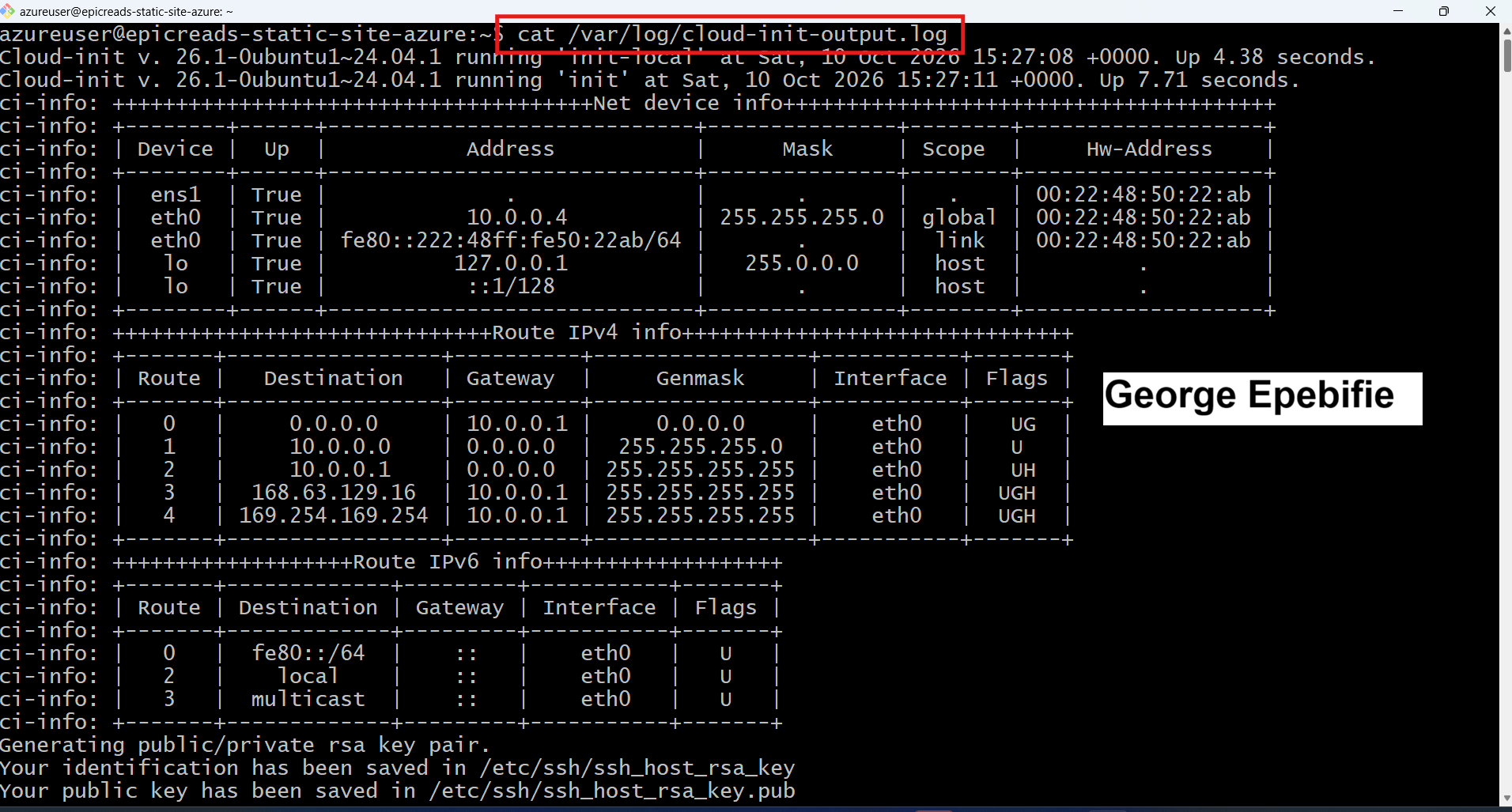
and relevant Docker installation activity. If the log is long, use the filtered output as supporting evidence, but also retain the full log for troubleshooting.
Task 3 — Verify Docker Installation
Now confirm that Cloud-Init installed Docker correctly and that the Docker daemon is running.
Step 3.1: Check the Docker version
Run:
docker --version
Expected output format:
Docker version 27.x.x, build ...
The actual version may differ.
Step 3.2: Check running containers
Run:
docker ps
At this stage, no application container has been created, so an empty container list is normal.
Expected output format:
CONTAINER ID IMAGE COMMAND CREATED STATUS PORTS NAMES
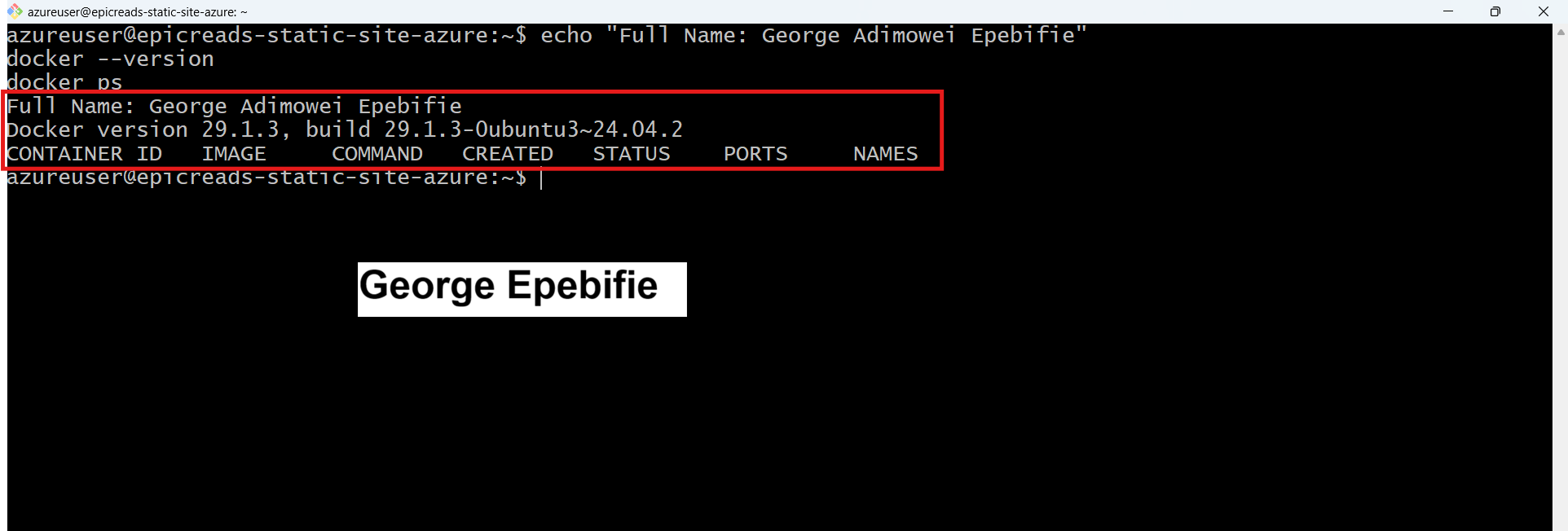
The important thing is that Docker runs without a daemon connection error.
Step 3.3: Troubleshoot Docker permissions
If you receive a permission error, first verify the service:
sudo systemctl status docker
Then try:
sudo docker ps
If that works, the Docker daemon is running but your user probably lacks permission to access it.
Add the current user to the Docker group:
sudo usermod -aG docker "$USER"
Log out:
exit
Reconnect through SSH, then run:
docker ps
Group membership changes only take effect in a new login session. Also, membership in the Docker group effectively grants powerful privileges on the VM, so only trusted users should be added.
Show both commands and their outputs:
docker --version
docker ps
If you need to use sudo docker ps, capture that output and document the permission issue accurately.
Task 4 — Clone the Website Repository
We will now retrieve the website source code from the GitHub repository specified in the assignment.
Step 4.1: Clone the repository
Run:
git clone https://github.com/pravinmishraaws/Azure-Static-Website.git
Expected output format:
Cloning into 'Azure-Static-Website'...
Git may display additional progress information.
Step 4.2: Enter the project directory
cd Azure-Static-Website
Step 4.3: Inspect the project files
ls
For a detailed listing:
ls -la
Verify the repository status:
git status
You should see a valid Git working tree. The precise file listing depends on the repository's current contents.
If Git reports that the command is not found, run:
sudo apt-get update
sudo apt-get install -y git
Then retry the clone.
If the directory already exists, inspect it rather than cloning into it again.
Show the successful clone, the command:
cd Azure-Static-Website
and the output of:
ls
Task 5 — Create the Dockerfile
A Dockerfile describes how to build the container image. We will use Nginx to serve the website's static files.
Step 5.1: Create the Dockerfile
Make sure you are inside the project directory:
pwd
The path should end with:
Azure-Static-Website
Now run the required command:
cat > Dockerfile <<'EOF'
FROM nginx:alpine
RUN rm -rf /usr/share/nginx/html/*
COPY . /usr/share/nginx/html
EXPOSE 80
EOF
This creates a file named Dockerfile in the current directory.
Step 5.2: Verify the file
Run:
cat Dockerfile
Expected content:
dockerfile
FROM nginx:alpine
RUN rm -rf /usr/share/nginx/html/*
COPY . /usr/share/nginx/html
EXPOSE 80
Step 5.3: Understand the configuration
| Instruction | Purpose |
|---|---|
FROM nginx:alpine |
Uses a lightweight Nginx base image. |
RUN rm -rf /usr/share/nginx/html/* |
Removes the default website files. |
COPY . /usr/share/nginx/html |
Copies the project files into Nginx's web directory. |
EXPOSE 80 |
Documents the container's HTTP port. |
Note that EXPOSE 80 documents the port; it does not publish it on the VM by itself. We will publish the port in Task 7.
For this project, use the required Dockerfile as provided. In production, you would generally exclude unnecessary files and secrets from the build context using .dockerignore.
Show:
cat Dockerfile
with all four lines visible.
Task 6 — Build the Docker Image
Now we will package the website and Nginx configuration into a Docker image.
Step 6.1: Build the image
From inside Azure-Static-Website, run:
docker build -t static-site:latest .
The final . tells Docker to use the current directory as the build context.
The build will download the Nginx base image if necessary, process the Dockerfile, and copy the website files into the resulting image.
Step 6.2: Verify the image
Run:
docker images
Expected output format:
REPOSITORY    TAG       IMAGE ID       CREATED          SIZE
static-site   latest    <image-id>     moments ago      <size>
nginx         alpine    <image-id>     ...              ...
The image ID, creation time, size, and Nginx version will vary.
The required result is an image named:
static-site:latest
Step 6.3: Troubleshoot build failures
If Docker cannot connect to its daemon:
sudo systemctl start docker
sudo systemctl status docker
If the image build fails because files are missing, inspect the project:
ls -la
If Docker reports a problem downloading the base image, check internet connectivity and retry the build.
If the Dockerfile was created in the wrong directory, move to the project directory before building.
Docker images
Show:
docker images
with static-site and latest visible.
Task 7 — Deploy the Docker Container
The image now exists locally on the VM. We will start a container from it and publish the website through port 80.
Step 7.1: Start the container
Run:
docker run -d \
  --name static-site \
  -p 80:80 \
  --restart unless-stopped \
  static-site:latest
The command uses the following options:
| Option | Meaning |
|---|---|
-d |
Runs the container in the background. |
--name static-site |
Assigns the required container name. |
-p 80:80 |
Maps VM port 80 to container port 80. |
--restart unless-stopped |
Restarts the container automatically unless it was explicitly stopped. |
static-site:latest |
Uses the image created in Task 6. |
A successful command normally prints a long container ID.
Step 7.2: Verify the running container
Run:
docker ps
Expected output format:
CONTAINER ID   IMAGE                COMMAND                  STATUS        PORTS                  NAMES
<container-id> static-site:latest   "/docker-entrypoint…"    Up ...        0.0.0.0:80->80/tcp     static-site
The most important details are:
IMAGE: static-site:latest
STATUS: Up
PORTS: 0.0.0.0:80->80/tcp
NAMES: static-site
Docker may also display an IPv6 binding. That is not a problem if the required IPv4 mapping is present.
Step 7.3: Test the website locally
Before testing from your browser, run:
curl -I http://localhost
A successful response commonly begins with:
HTTP/1.1 200 OK
Server: nginx
You can also retrieve the HTML:
curl http://localhost
This helps confirm that Nginx is serving content from the container.
If you receive an error, inspect the logs:
docker logs static-site
Step 7.4: Handle a port conflict
If Docker reports that port 80 is already allocated, identify the process using it:
sudo ss -lntp | grep ':80'
Stop or reconfigure the conflicting service if appropriate. Do not blindly terminate an unknown process.
If you need to recreate a failed container, first inspect it, then remove it if safe:
docker rm -f static-site
Retry the required docker run command.
Show:
docker ps
with the container name, running status, and port mapping visible.
Local HTTP test
Show:
curl -I http://localhost
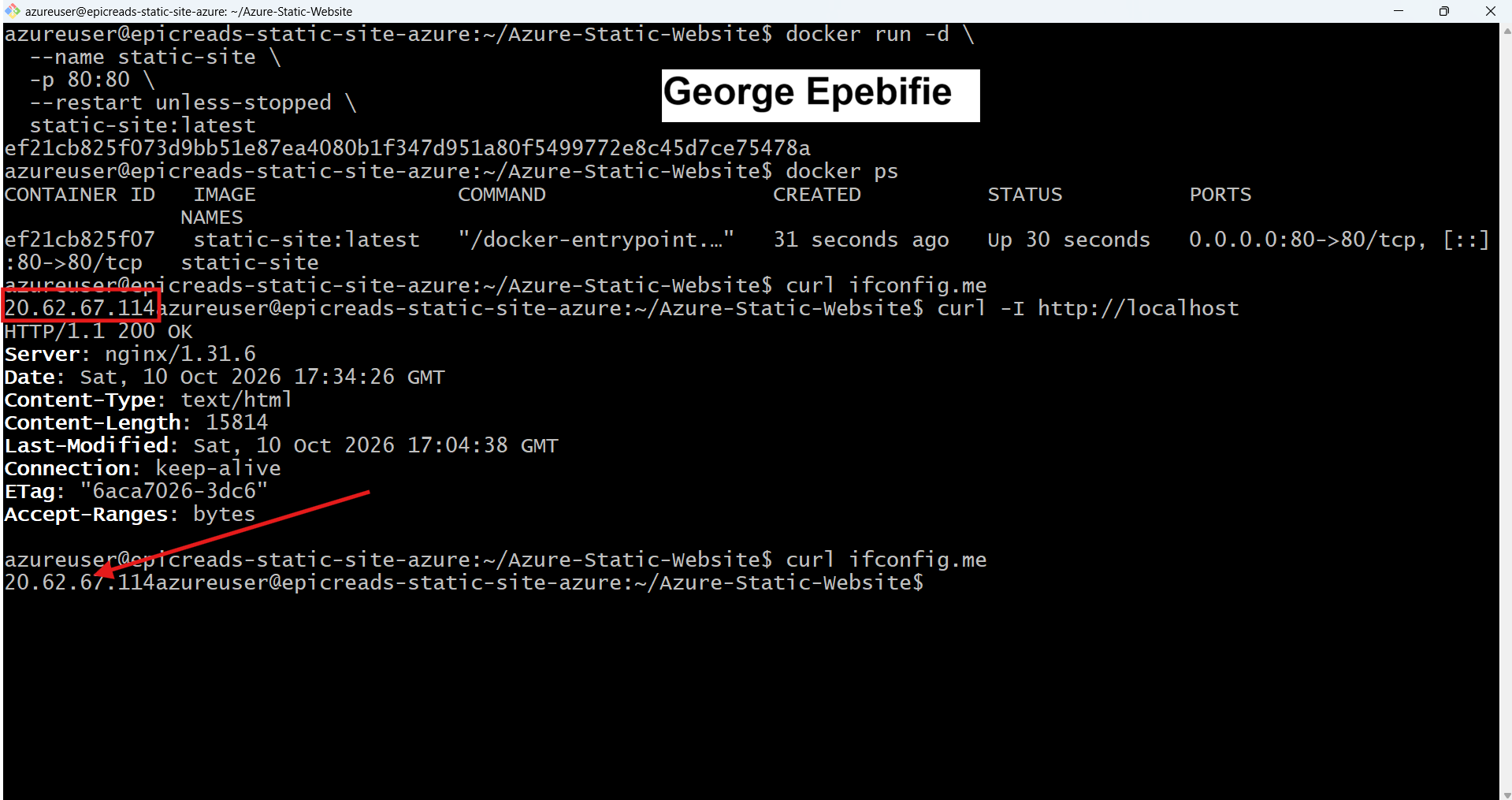
with the successful HTTP response.
Task 8 — Verify Public Website Access
This is the final task and the most important proof that the deployment works end to end.
A running container does not automatically prove that users on the internet can access the website. We must test the public network path as well.
Step 8.1: Obtain the Azure public IP
In the VM's Overview page, find the assigned Public IP address. You can also run the project's command from the VM:
Bash
curl ifconfig.me
This command returns the public address seen by that external service. If it does not match the VM's assigned IP, verify the address in the Azure portal and check whether the VM uses any outbound proxy or network translation.
Step 8.2: Test the public endpoint
From your computer, run:
Bash
curl -I http://YOUR_AZURE_PUBLIC_IP
Replace YOUR_AZURE_PUBLIC_IP with the actual address.
A successful result commonly includes:
HTTP/1.1 200 OK
Server: nginx
Content-Type: text/html
A 200 OK response confirms that the HTTP endpoint is responding. It is also important to visually confirm that the expected website content is being served.
Step 8.3: Open the website in a browser
Open your browser and enter:
http://YOUR_AZURE_PUBLIC_IP
For example, if your assigned address were 203.0.113.25, the URL would be:
http://203.0.113.25
That address is only an example; use your actual VM public IP.
The EpicReads static website should load.
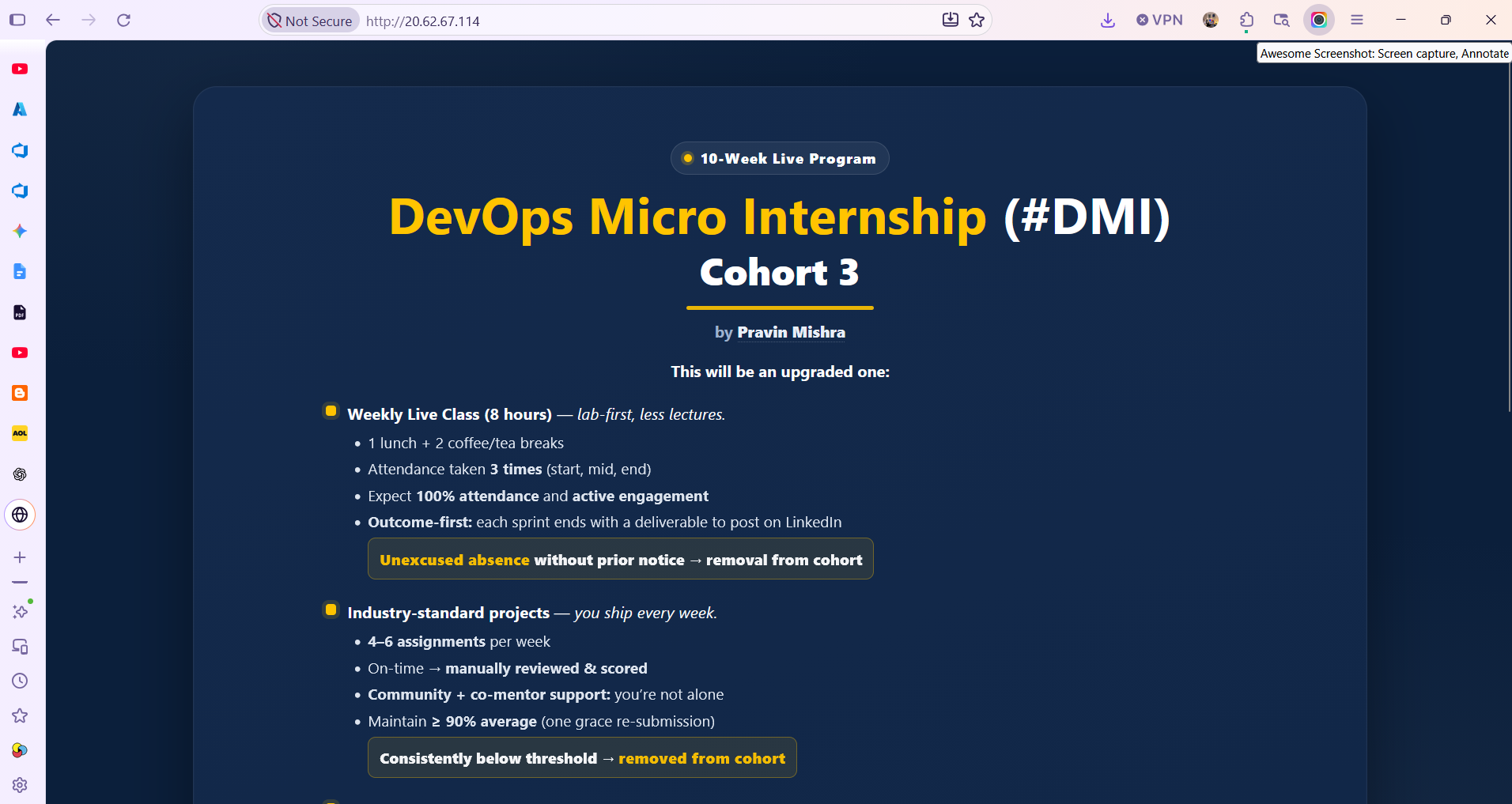
Step 8.4: If the browser cannot reach the website
Check the following in order:
- Container status:
docker ps - Local application response:
curl -I http://localhost - Container logs:
docker logs static-site - Port listener:
sudo ss -lntp | grep ':80' - Azure NSG: Confirm inbound TCP port 80 allows traffic from
0.0.0.0/0. - Public IP: Confirm that you are using the correct address assigned to the VM.
- Firewall: Check
sudo ufw statusif UFW is installed and active.
If local HTTP works but public access fails, investigate the Azure networking configuration first. If local HTTP fails, troubleshoot Docker, Nginx, and the website files before changing cloud firewall rules.
Show the website in a browser with the address bar visible, displaying:
http://YOUR_AZURE_PUBLIC_IP
This is the final proof that the website is publicly accessible through the Azure VM.
9. Final troubleshooting reference
Use this table when something does not work as expected.
| Problem | Diagnostic command | Recommended action |
|---|---|---|
| Cloud-Init incomplete | cloud-init status --long |
Review /var/log/cloud-init.log. |
| Docker service stopped | sudo systemctl status docker |
Run sudo systemctl start docker. |
| Docker permission denied | sudo docker ps |
Add your actual user to the Docker group and reconnect. |
| Git clone fails | git status or retry git clone |
Check connectivity, repository URL, and whether the folder already exists. |
| Image build fails | docker build -t static-site:latest . |
Check the Dockerfile and build output. |
| Container is missing | docker ps -a |
Inspect the container and its logs. |
| Port 80 is occupied | sudo ss -lntp | grep ':80' |
Identify the conflicting service before changing anything. |
| Website returns an error | docker logs static-site |
Inspect Nginx logs and confirm website files were copied. |
| Local works, public fails | curl -I http://localhost |
Check the NSG, public IP, and firewall. |
For further assistance with Cloud-Init, use Microsoft's official troubleshooting documentation.
11. Industry insight
This project combines two important DevOps practices.
Infrastructure automation: Cloud-Init installs packages and configures the VM during first boot, making setup more repeatable.
Containerization: Docker packages the website for a consistent runtime, while Nginx serves the static content. Mapping port 80 makes the container available through the VM's HTTP endpoint.
The same general container workflow can be used on other cloud providers, provided the surrounding infrastructure, network rules, and runtime are configured correctly.
13. Conclusion
By completing these tasks, you will have demonstrated the ability to provision an Azure VM, automate Docker installation, package a website into a Docker image, run it using Nginx, and verify public HTTP access.
Final reminder: after your test project is complete, stop or delete the Azure resources you no longer need. A VM marked as free-tier eligible can still have associated resources or usage that incur charges, so review your subscription's billing information before leaving the environment running.
P.S. This post is part of the DevOps Micro Internship (DMI) with Agentic AI — Cohort 3 — by [Pravin Mishra](https://www.linkedin.com/in/pravin-mishra-aws-trainer/). My graded progress is public: https://dmi.pravinmishra.com/s/wisegeorge1.html · Start your DevOps journey: https://dmi.pravinmishra.com/?utm_source=student&utm_medium=ps-linkedin&utm_campaign=cohort3
Comments
Join the discussionNo comments yet. Be the first to comment.