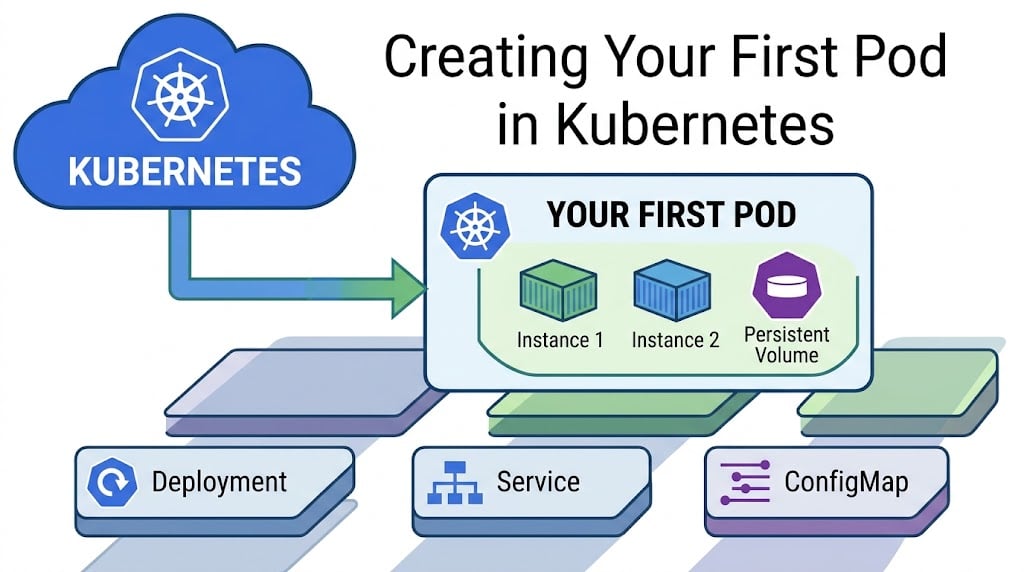
Creating Your First Pod in Kubernetes
A Step-by-Step Blog Tutorial

Kubernetes is a powerful platform for running and managing containerized applications. One of its most important building blocks is the Pod — the smallest deployable unit in Kubernetes.
In this hands-on lab, you will create an NGINX Pod in two ways: first with an imperative kubectl command, then with a declarative YAML manifest. You will inspect the Pod, review its logs and events, open a shell inside its container, and understand when each approach is useful.
The steps below follow your assignment's required order and resource names.
1. Project objectives and expected outcome
By the end of this lab, you will be able to:
- Explain what a Pod is and how it relates to a container.
- Create a Pod with
kubectl run. - Verify and delete a Pod.
- Define a Pod using YAML and apply it with
kubectl apply. - Inspect Pod configuration, status, events, and logs.
- Execute commands inside a running container.
- Explain the difference between imperative and declarative workflows.
Real world scenario: Imagine you are a junior DevOps engineer and need to test whether NGINX can run on a Kubernetes cluster. An imperative command allows you to launch a quick test. A YAML manifest gives your team a repeatable definition that can be reviewed, stored in version control, and applied again.
2. Prerequisites and cluster safety
You need:
- A working Kubernetes learning or lab cluster.
kubectlinstalled and configured.- Permission to create, inspect, delete, and execute into Pods.
- Terminal access and a text editor such as Nano or Vim.
- Internet connectivity from the cluster's nodes, or access to a registry mirror, to pull the official NGINX image when needed.
This lab does not require a cloud-specific cluster. You can use an existing training cluster, Minikube, kind, or another supported Kubernetes environment.
Step 1 — Confirm your Kubernetes connection
Before creating resources, check which cluster and namespace kubectl will use:
Bash
kubectl config current-context
kubectl cluster-info
kubectl get nodes
kubectl config view --minify
Review the output and make sure the active context is your learning or lab cluster, not production. The minified config shows the selected cluster and user configuration; avoid sharing credentials or sensitive configuration details.
Check that the nodes are ready:
Bash
kubectl get nodes
Expected result: your lab cluster's nodes should normally show Ready. If kubectl cluster-info cannot connect, resolve the cluster connection before continuing.
Step 2 — Verify permissions
Bash
kubectl auth can-i create pods
kubectl auth can-i get pods
kubectl auth can-i delete pods
kubectl auth can-i create pods/exec
kubectl auth can-i get pods/log
3. Task 1 — Set up your lab folder
Step 1 — Create the working directory
Run:
Bash
mkdir -p ~/k8s-labs/pods
cd ~/k8s-labs/pods
Verify your current directory:
Bash
pwd
ls -la
Expected directory:
~/k8s-labs/pods
This directory will hold your Pod manifest and other files related to the lab.
Bash
echo "Full Name: YOUR FULL NAME"
Replace the placeholder with your actual full name. Do not include passwords, access tokens, or other credentials in screenshots.
4. Task 2 — Create a Pod imperatively
An imperative command tells Kubernetes what action to perform directly, without first saving a complete resource definition in a manifest file.
Step 1 — Create the NGINX Pod
Make sure you are in the lab directory, then run:
Bash
cd ~/k8s-labs/pods

echo "Full Name: YOUR FULL NAME"
kubectl run nginx-pod --image=nginx
This instructs Kubernetes to create a Pod named nginx-pod using the official nginx image.
Expected output will resemble:
pod/nginx-pod created
The exact output can vary depending on your Kubernetes version and cluster state.
Step 2 — Check the Pod status
Run:
Bash
kubectl get pods
At first, you might see ContainerCreating while Kubernetes downloads the image and starts the container. Wait until the Pod becomes ready:
Bash
kubectl wait --for=condition=Ready pod/nginx-pod --timeout=120s
Then check again:
Bash
echo "Full Name: YOUR FULL NAME"
kubectl get pods
Expected output resembles:
NAME        READY   STATUS    RESTARTS   AGE
nginx-pod   1/1     Running   0          ...
The Pod may take a little time to reach Running. If it does not, use the troubleshooting section below before proceeding.
Step 3 — Delete the imperative Pod
Your assignment requires deleting this Pod before creating another Pod with the same name from YAML.
Run:
Bash
echo "Full Name: YOUR FULL NAME"
kubectl delete pod nginx-pod
Expected output:
pod "nginx-pod" deleted
Confirm it has been removed:
Bash
kubectl get pods
The nginx-pod resource should no longer appear in the current namespace. If deletion is still in progress, wait and check again:
Bash
kubectl wait --for=delete pod/nginx-pod --timeout=60s
If it has already disappeared, Kubernetes may report that the resource was not found; that simply means there is nothing left to wait for.
Learning checkpoint: You have now created, checked, and deleted a Pod using imperative commands. Next, you will define the same workload in a reusable YAML file.
5. Task 3 — Create the Pod declaratively using YAML
The declarative approach describes the desired state of a resource in a file. You then use kubectl apply to ask Kubernetes to create or update resources to match that definition.
Step 1 — Create the YAML manifest
Make sure the required directory exists:
Bash
mkdir -p ~/k8s-labs/pods
cd ~/k8s-labs/pods
touch nginx-pod.yaml
nano nginx-pod.yaml
Paste the following manifest into the editor. YAML indentation matters: use spaces, not tabs.
YAML
apiVersion: v1
kind: Pod
metadata:
  name: nginx-pod
  labels:
    app: nginx
spec:
  containers:
    - name: nginx-container
      image: nginx
      ports:
        - containerPort: 80
Save and exit Nano:
- Press
Ctrl + Oto save. - Press
Enterto confirm the filename. - Press
Ctrl + Xto exit.
If you prefer not to use an interactive editor, you can create the same file with this shell script:
cat > ~/k8s-labs/pods/nginx-pod.yaml <<'EOF'
apiVersion: v1
kind: Pod
metadata:
  name: nginx-pod
  labels:
    app: nginx
spec:
  containers:
    - name: nginx-container
      image: nginx
      ports:
        - containerPort: 80
EOF
Step 2 — Verify the manifest before applying it
Run:
echo "Full Name: YOUR FULL NAME"
cat ~/k8s-labs/pods/nginx-pod.yaml
Check that the file contains the required name, label, container name, image, and port.
You can ask Kubernetes to validate the manifest without saving the resource:
kubectl apply --dry-run=server -f ~/k8s-labs/pods/nginx-pod.yaml
This server-side dry run requires a reachable cluster and appropriate permissions. It validates the manifest against the cluster but does not create the Pod. If server-side dry run is unavailable in your environment, review the YAML and continue with kubectl apply.
Step 3 — Apply the YAML manifest
First, confirm that the imperative Pod was deleted:
kubectl get pods
Then apply the declarative manifest:
cd ~/k8s-labs/pods

echo "Full Name: YOUR FULL NAME"
kubectl apply -f nginx-pod.yaml
Expected output resembles:
pod/nginx-pod created
Step 4 — Verify the declarative Pod
Check its status:
kubectl get pods
Wait for it to become ready
kubectl wait --for=condition=Ready pod/nginx-pod --timeout=120s
Then run:
echo "Full Name: YOUR FULL NAME"
kubectl get pods -o wide
Expected output resembles:
NAME        READY   STATUS    RESTARTS   AGE   IP       NODE
nginx-pod   1/1     Running   0          ...   ...      ...
The Pod's IP address and node name depend on your cluster. The Pod's status should be Running and its ready count should be 1/1.
Step 5 — Understand the YAML manifest
| Field | Meaning |
|---|---|
apiVersion: v1 |
Uses the Kubernetes core API version for Pods. |
kind: Pod |
Defines the resource type as a Pod. |
metadata.name |
Names the Pod nginx-pod. |
metadata.labels |
Assigns the label app: nginx. |
spec |
Defines the desired Pod configuration. |
spec.containers |
Lists the containers that run inside the Pod. |
name: nginx-container |
Names the container inside the Pod. |
image: nginx |
Specifies the official NGINX image. |
containerPort: 80 |
Documents the container port used by NGINX. |
Important: containerPort: 80 declares the port the container uses; it does not automatically expose the application to the public internet or create a Kubernetes Service. This lab only requires creating and inspecting the Pod.
6. Task 4 — Inspect and access the Pod
Now that nginx-pod has been created from the YAML manifest, you will inspect its configuration, view its logs, and explore the NGINX container's default web files.
Step 1 — Describe the Pod
Run:
echo "Full Name: YOUR FULL NAME"
kubectl describe pod nginx-pod
This command displays detailed information, including:
- Pod name, namespace, and labels.
- Pod IP and the node where it is running.
- Container name and image.
- Container state and readiness.
- Restart count.
- Events related to scheduling, image pulling, and startup.
Pay particular attention to the Conditions, Containers, and Events sections. These are especially useful when a Pod fails to start.
Step 2 — View the NGINX container logs
Run:
echo "Full Name: YOUR FULL NAME"
kubectl logs nginx-pod
The command retrieves the container's standard output and standard error.
It may return little or no output if NGINX has not yet received a request. That does not necessarily indicate a problem.
To generate an HTTP request from within the cluster, you can use the Pod's IP address:
kubectl get pod nginx-pod -o wide
If your cluster provides a shell with curl, try this command from your terminal, replacing POD_IP with the displayed Pod IP:
kubectl run nginx-test \
  --image=curlimages/curl \
  --restart=Never \
  --rm -i \
  -- curl -I --max-time 10 http://POD_IP/
This optional test creates a temporary client Pod and removes it after the command completes. It requires the cluster to be able to pull the curlimages/curl image and the Pod network to permit the connection. You can skip it if you want to follow only the required lab steps.
After generating a request, check the NGINX logs again:
kubectl logs nginx-pod
You should see the request in the access log output if NGINX is configured to send its access logs to standard output, as the official image normally does.
Step 3 — Open a shell inside the NGINX container
Run the command specified by your assignment:
echo "Full Name: YOUR FULL NAME"
kubectl exec -it nginx-pod -- /bin/bash
You should now be inside the running NGINX container. Your terminal prompt will change to indicate the container shell.
If Bash is unavailable in your image, use /bin/sh instead:
kubectl exec -it nginx-pod -- /bin/sh
Step 4 — Explore the default NGINX web directory
Run these commands inside the container shell:
cd /usr/share/nginx/html
ls -la
You should see the files that make up the default NGINX welcome page, commonly including index.html.
To inspect the default HTML file:
cat index.html
This demonstrates where the default web content is stored inside the container's filesystem.
Step 5 — Exit the container shell
When you finish inspecting the files, run:
exit
You will return to your original terminal. This exits the interactive shell; it does not delete the Pod or stop NGINX.
Verify that the Pod is still running:
kubectl get pods
Expected status:
NAME        READY   STATUS    RESTARTS   AGE
nginx-pod   1/1     Running   0          ...
7. Troubleshooting and error handling guide
Use the following checks if your results differ from the expected output.
| Error or symptom | Possible cause | What to do |
|---|---|---|
kubectl cannot connect |
Cluster is stopped or configuration is incorrect | Run kubectl config current-context and kubectl cluster-info. Confirm the correct lab cluster is running. |
nginx-pod already exists |
A previous Pod was not deleted | Inspect it with kubectl get pod nginx-pod. If it is your lab Pod, delete it before proceeding. |
Pod remains Pending |
Scheduling issue, insufficient resources, or node problems | Run kubectl describe pod nginx-pod and review the events. |
ImagePullBackOff |
Registry access or image-pull problem | Check the image name, node connectivity, and Pod events. |
ErrImagePull |
Kubernetes cannot download the image | Review the image-pull error in kubectl describe pod nginx-pod. |
| YAML parsing error | Incorrect indentation or malformed YAML | Check the manifest carefully. Use spaces, not tabs. |
kubectl logs shows no output |
NGINX has not received a request, or logs are directed elsewhere | Confirm the Pod is running and generate a request. |
kubectl exec fails |
Pod is not running or the command is unavailable | Check kubectl get pods and use /bin/sh if Bash is unavailable. |
| Pod restarts repeatedly | Container startup or runtime issue | Run kubectl describe pod nginx-pod and kubectl logs nginx-pod --previous if a previous container instance exists. |
Essential diagnostic commands
If something goes wrong, run these commands in order:
kubectl get pods -o wide
kubectl describe pod nginx-pod
kubectl logs nginx-pod
kubectl get events --sort-by=.metadata.creationTimestamp
If the container has restarted, check the previous instance's logs:
kubectl logs nginx-pod --previous
Do not repeatedly delete and recreate the Pod without examining the error. The events and logs usually provide the best starting point for identifying the cause.
8. Industry insight — Imperative vs. declarative Kubernetes
Imperative workflow
kubectl run nginx-pod --image=nginx
You issue a direct command to create the Pod. This is convenient for quick experiments, temporary testing, and troubleshooting.
Declarative workflow
kubectl apply -f nginx-pod.yaml
You describe the desired resource configuration in a file. This is better suited to repeatable environments, peer review, version control, and team collaboration.
In production environments, standalone Pods are generally not the preferred way to run long lived applications. Kubernetes Deployments typically manage replicated Pods, replace failed instances, and support controlled application updates.
This lab intentionally uses a standalone Pod because its purpose is to teach the fundamentals of Kubernetes resources and kubectl.
9. Final verification
Run the following commands from your terminal:
Bash
cd ~/k8s-labs/pods

echo "Full Name: YOUR FULL NAME"
kubectl get pods
kubectl describe pod nginx-pod
kubectl logs nginx-pod
kubectl get pod nginx-pod -o yaml
The Pod should be running, and its configuration should reflect the YAML manifest. Remember that kubectl logs may be empty if no request has been received.
key takeaways
You have followed the required workflow:
- Created the lab folder.
- Created, checked, and deleted
nginx-podusingkubectl run. - Created
nginx-pod.yamlwith the required labels, container name, image, and port. - Applied the YAML manifest and verified the resulting Pod.
- Inspected the Pod, reviewed logs, accessed the container shell, explored the default NGINX files, and exited the shell.
You now understand the difference between creating a resource with an imperative command and managing it using a declarative manifest. These are foundational skills for working with Kubernetes in real-world DevOps environments.
P.S. This post is part of the DevOps Micro Internship (DMI) with Agentic AI — Cohort 3 — by [Pravin Mishra](https://www.linkedin.com/in/pravin-mishra-aws-trainer/). My graded progress is public: https://dmi.pravinmishra.com/s/wisegeorge1.html · Start your DevOps journey: https://dmi.pravinmishra.com/?utm_source=student&utm_medium=ps-linkedin&utm_campaign=cohort3
Comments
Join the discussionNo comments yet. Be the first to comment.