# Set Up a Self-Hosted Linux Agent for Azure DevOps on Ubuntu
*A practical step-by-step guide from the DevOps Micro Internship (DMI) Cohort 3 with Agentic AI*
A self hosted Azure DevOps agent gives you more control over the machine that executes your CI/CD pipelines. Instead of relying entirely on Microsoft hosted agents, you can run pipeline jobs on your own Ubuntu virtual machine and install the tools, dependencies, and configurations your workloads require.
In this tutorial, we'll build a self hosted Linux agent using:
- **Microsoft Azure** — cloud platform
- **Ubuntu 22.04+** — agent host
- **Azure DevOps** — CI/CD platform
- **Personal Access Token (PAT)** — agent registration authentication
- **systemd** — keeps the agent running as a Linux service
- **YAML pipeline** — validates the setup
Microsoft describes self hosted agents as machines you manage yourself, giving you greater control over installed dependencies and persistent machine level configuration. *Microsoft Learn*
### Architecture
The basic setup looks like this:

The Azure DevOps agent runs on the Ubuntu VM and waits for jobs from the agent pool.
### Prerequisites
Before starting, you'll need:
- An Azure DevOps organization
- An Azure DevOps project
- Permission to manage agent pools
- An Azure subscription
- An Ubuntu VM
- SSH access to the VM
- Internet connectivity from the VM
- A PAT with the required permissions
For current Azure DevOps documentation, Microsoft specifically states that agent registration using a PAT requires the **Agent Pools (Read & manage)** scope.
> **Security note:** Never publish your PAT in screenshots, Git repositories, blog posts, terminal history, or pipeline logs.
### Step 1: Create a Personal Access Token
A Personal Access Token, or PAT, is a credential that Azure DevOps can use to authenticate the agent during registration.
> Microsoft recommends using PATs only when necessary because they are credentials that can be leaked or misused.
### 1\. Open Azure DevOps
Sign in to your Azure DevOps organization.

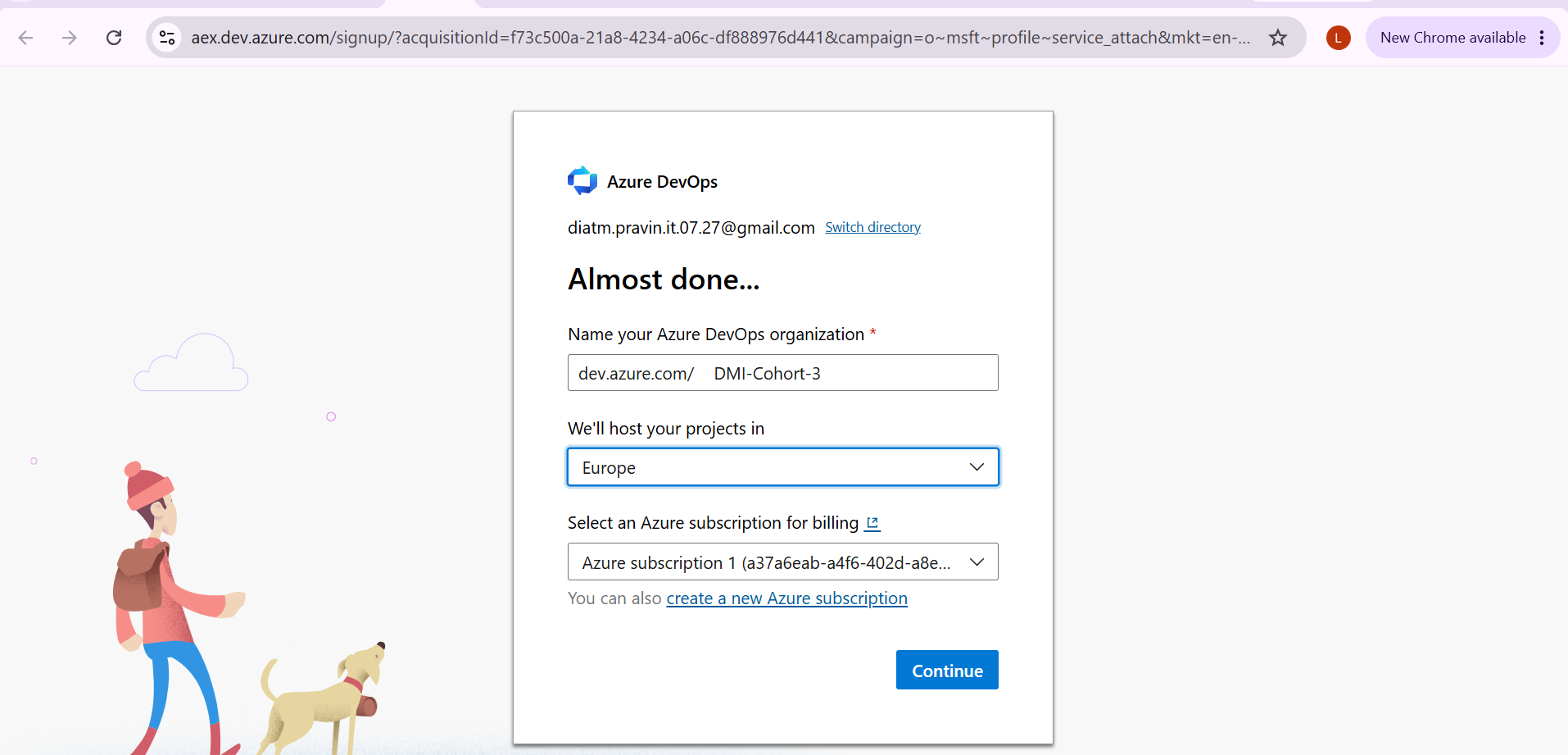 Open your profile menu and select:\
Click the User settings icon (top right, next to your profile picture) → Personal access tokens

Click + New Token
### 2\. Configure the token
Give the token a descriptive name, for example:
```plaintext
SelfHostedAgentPAT
```
Choose the appropriate organization and set an expiration date.

For agent registration, select:
```plaintext
Agent Pools
→ Read & manage
Build
→ Read & Execute
```
The Microsoft documentation specifically identifies this scope for registering a self hosted agent.
If your particular pipeline operations require additional permissions, configure only the minimum scopes necessary rather than creating an unnecessarily broad token.
### 3\. Create and securely store the PAT
Click **Create**.

Copy the token immediately and store it securely. Azure DevOps does not display the token value again after creation.

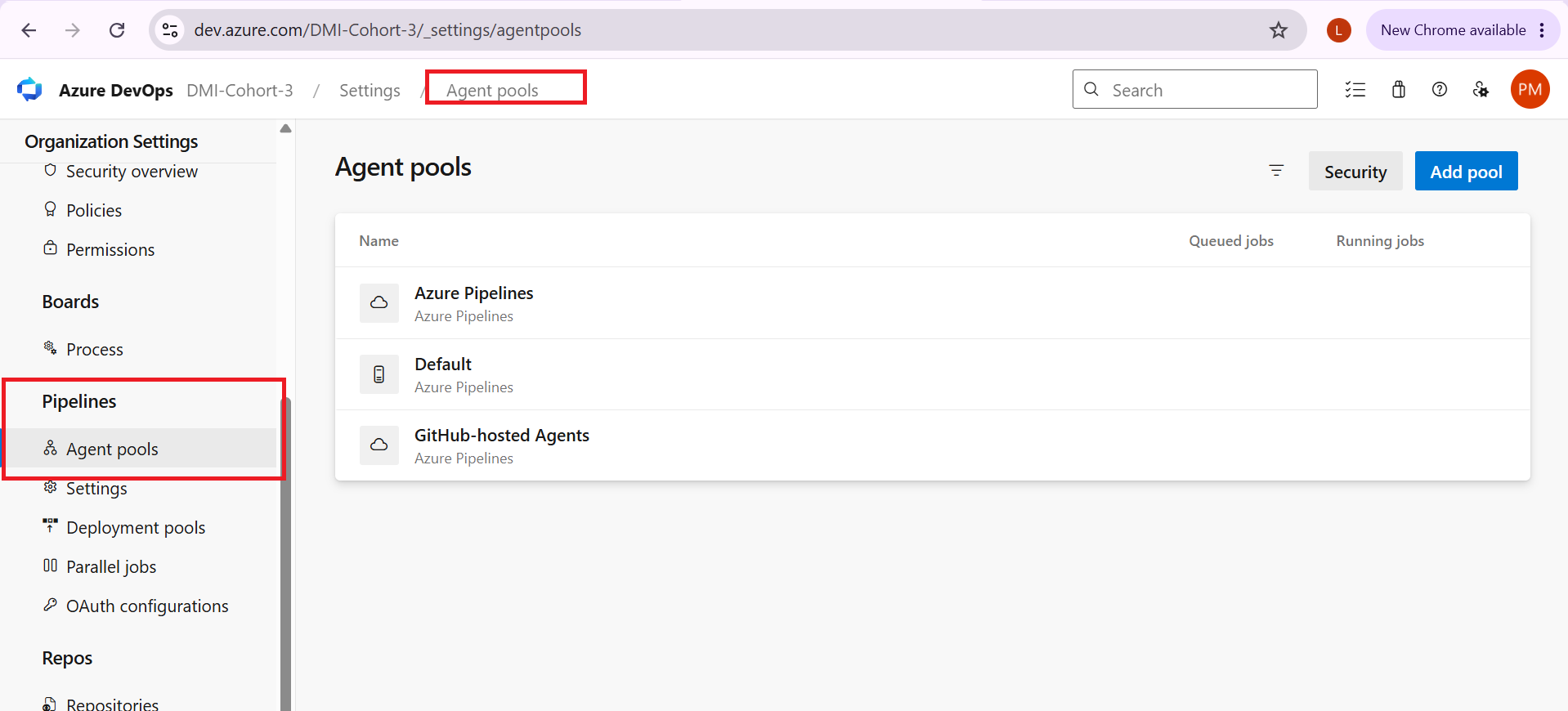
### Step 2: Create an Azure DevOps Agent Pool
An agent pool is a collection of agents that can execute pipeline jobs.\
From Azure DevOps:
**Organization settings → Agent pools**
Select: **Add pool**
Open your profile menu and select:\
Click the User settings icon (top right, next to your profile picture) → Personal access tokens

Click + New Token
### 2\. Configure the token
Give the token a descriptive name, for example:
```plaintext
SelfHostedAgentPAT
```
Choose the appropriate organization and set an expiration date.

For agent registration, select:
```plaintext
Agent Pools
→ Read & manage
Build
→ Read & Execute
```
The Microsoft documentation specifically identifies this scope for registering a self hosted agent.
If your particular pipeline operations require additional permissions, configure only the minimum scopes necessary rather than creating an unnecessarily broad token.
### 3\. Create and securely store the PAT
Click **Create**.

Copy the token immediately and store it securely. Azure DevOps does not display the token value again after creation.

### Step 2: Create an Azure DevOps Agent Pool
An agent pool is a collection of agents that can execute pipeline jobs.\
From Azure DevOps:
**Organization settings → Agent pools**
Select: **Add pool**
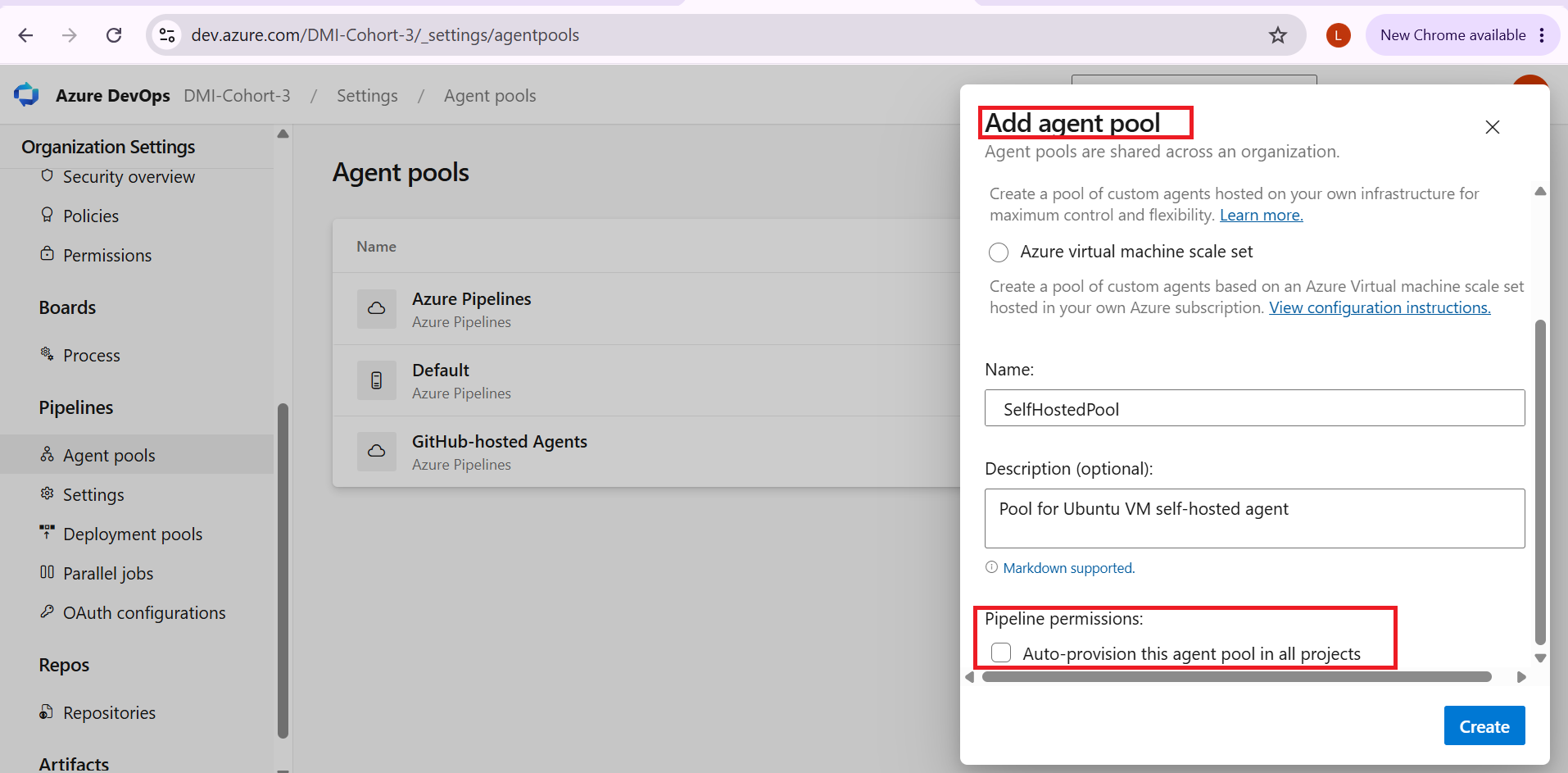
 Create a pool such as:
```plaintext
SelfhostedPool
```
Your pipeline will later target this pool.
Create a pool such as:
```plaintext
SelfhostedPool
```
Your pipeline will later target this pool.
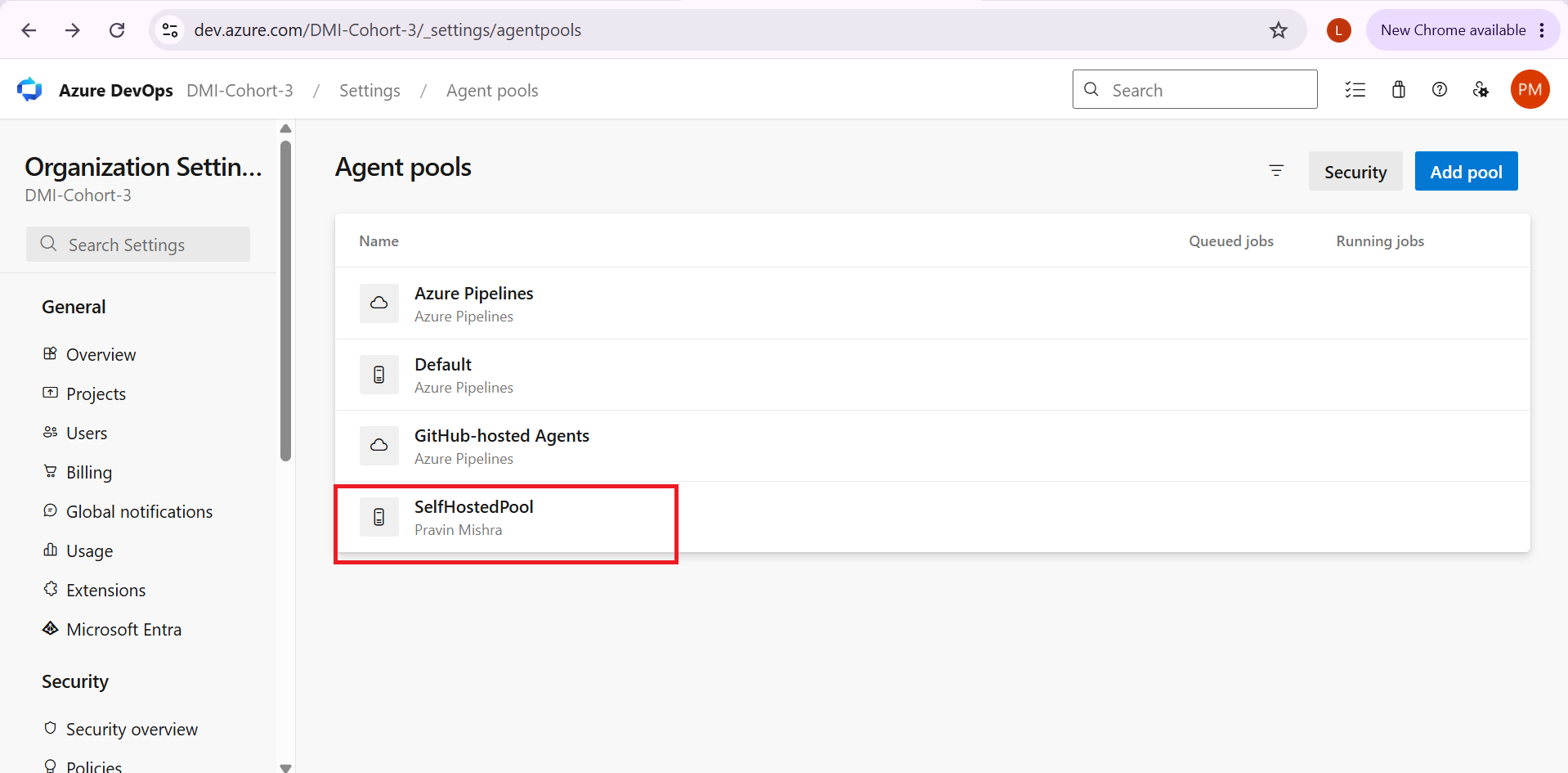
 Example:
```plaintext
Agent pools
SelfhostedPool
```
Example:
```plaintext
Agent pools
SelfhostedPool
```
 ### Step 3: Provision the Ubuntu VM
Next, create the machine that will run the Azure DevOps agent.\
In my implementation, I used **Microsoft Azure**.\
Create an Ubuntu virtual machine using Ubuntu 22.04 or a current supported Ubuntu release.
Configure:
- VM size appropriate for your workload
- SSH authentication
- Network connectivity
- Public IP or DNS name if required for SSH administration
- Appropriate inbound network rules
For a basic lab environment, SSH access is the main administrative requirement.

### Step 4: Connect to the Ubuntu VM
From your local terminal, connect using SSH:
```plaintext
ssh @
```
For example:
```plaintext
ssh azureuser@
```
Once connected, verify the operating system:
```plaintext
cat /etc/os-release
```
You can also check the kernel:
```plaintext
uname -a
```
And confirm the current user:
```plaintext
whoami
```
A successful result confirms that you can administer the Ubuntu machine.

### Step 5: Prepare the Agent Directory
Create a dedicated directory for the Azure DevOps agent.
For example:
```plaintext
mkdir ~/myagent
cd ~/myagent
```
The Azure Pipelines documentation recommends downloading the appropriate Linux agent package and extracting it into a directory of your choice before running `config.sh`
### Step 6: Download the Azure DevOps Agent
Go to:\
**Azure DevOps → Organization settings → Agent pools → SelfhostedPool → Agents → New agent**
Select:
```plaintext
Linux
```
Then choose the appropriate architecture for your VM, such as x64.
Azure DevOps provides the current download link and installation instructions from the **New agent** dialog. Microsoft Learn
Download the package onto your Ubuntu VM.
The exact filename changes as newer agent versions are released, so it's better to copy the current download command provided by Azure DevOps rather than hard-code an old version.\
After downloading the package, extract it:
```plaintext
tar -xzf .tar.gz
```
Then verify the directory contents:
```plaintext
ls
```
You should see files including:
```plaintext
config.sh
run.sh
svc.sh
bin/
```
### Step 7: Configure the Agent
From the agent directory, run:
```plaintext
./config.sh
```
The configuration wizard will ask for information such as:
```plaintext
Server URL:
Authentication type:
Personal access token:
Agent pool:
Agent name:
Work folder:
```
For the server URL, use your Azure DevOps organization URL:
```plaintext
https://dev.azure.com/
```
When prompted for authentication, select the PAT option.
Paste your PAT when requested.
**Never paste the PAT into this blog post or capture it in a screenshot.**
For the agent pool, enter:
```plaintext
SelfhostedPool
```
Choose an agent name such as:
```plaintext
ubuntu-agent-01
```
For the work directory, the default is generally fine:
```plaintext
_work
```
Azure DevOps documents `config.sh` as the standard configuration process for Linux self-hosted agents. Microsoft Learn

### Step 8: Install the Agent as a systemd Service
An agent can be run interactively, but for a persistent build machine, running it as a system service is much more practical.
Azure DevOps provides the `svc.sh` script specifically for managing a Linux agent as a `systemd` service. Ubuntu supports this approach. Microsoft Learn
From the agent directory:
```plaintext
sudo ./svc.sh install
```
Then start the service:
```plaintext
sudo ./svc.sh start
```
Check its status:
```plaintext
sudo ./svc.sh status
```
You should see that the service is running.
```plaintext
sudo ./svc.sh status
```

showing that the agent service is running.
### Step 9: Verify the Agent in Azure DevOps
Return to:
**Organization settings → Agent pools → SelfhostedPool → Agents**

If it does not appear immediately, check the service:
```plaintext
sudo ./svc.sh status
```
You can also inspect the system logs if troubleshooting is necessary.
This confirms that Azure DevOps can communicate with your self-hosted agent.
### Step 10: Create a Test YAML Pipeline
Now let's prove that the agent can actually execute pipeline jobs.\
Create a YAML pipeline targeting your self-hosted pool.

```plaintext
trigger: none
pool:
name: SelfhostedPool
steps:
- script: |
echo "Operating System:"
uname -a
echo "Current User:"
whoami
echo "Disk Usage:"
df -h
displayName: "Verify Self-Hosted Ubuntu Agent"
```
The important part is:
```plaintext
pool:
name: SelfhostedPool
```
This tells Azure DevOps to run the job using an agent from your custom pool.
The commands provide three simple checks:
```plaintext
uname -a
```
Confirms the Linux kernel and machine information.
```plaintext
whoami
```
Shows the account executing the pipeline.
```plaintext
df -h
```
Displays filesystem and disk usage.
Run the pipeline.
If everything is configured correctly, the job should be picked up by your Ubuntu VM.
### Step 11: Verify the Pipeline Output
Open the pipeline run and inspect the job logs.\
You should see output similar to:
```plaintext
Operating System:
Linux ...
Current User:
...
Disk Usage:
Filesystem Size Used Avail Use% Mounted on
...
```
This is the final validation that your Azure DevOps pipeline is executing commands directly on your self-hosted Ubuntu agent.
### Screenshot 7
Capture the successful pipeline output showing:
- `uname -a`
- `whoami`
- `df -h`
- Successful pipeline completion
### Troubleshooting
If the agent doesn't appear online, start with the service:
```plaintext
sudo ./svc.sh status
```
If it isn't running:
```plaintext
sudo ./svc.sh start
```
If the service still fails, inspect the agent directory and service logs.
Also verify:
- The VM has internet connectivity.
- The agent was configured with the correct organization URL.
- The correct agent pool was selected.
- The PAT has the required **Agent Pools (Read & manage)** scope.
- The PAT hasn't expired or been revoked.
- The agent isn't already registered under an unexpected name.
Remember that the PAT is primarily used during agent registration when PAT authentication is selected; Microsoft also documents service principal authentication as an alternative. Microsoft Learn+1
### Security Considerations
A self-hosted agent gives you more control, but that control also means you are responsible for the machine.\
A few practices are especially important:
### Never expose your PAT
Don't commit it to Git:
```plaintext
❌ config.yaml
❌ .env
❌ README.md
❌ screenshots
❌ pipeline logs
```
Microsoft recommends treating PATs with the same level of caution as passwords.
### Use the minimum required permissions
Avoid creating a full-access PAT when a narrower scope is sufficient.
### Keep the VM updated
Regularly apply Ubuntu security updates and keep the Azure DevOps agent current.
### Don't run the agent as root
Microsoft's Linux agent documentation specifically notes that an agent service should not be run as the root user. Microsoft Learn
### Protect the agent
A self-hosted agent executes pipeline jobs on your infrastructure. Treat the machine as part of your CI/CD security boundary.
### My Implementation
For this DevOps Micro Internship assignment, my setup was:
| Component | Configuration |
| --- | --- |
| Cloud platform | Microsoft Azure |
| Operating system | Ubuntu |
| CI/CD platform | Azure DevOps |
| Agent pool | `SelfhostedPool` |
| Agent type | Self-hosted Linux |
| Authentication | Personal Access Token |
| Service manager | systemd |
| Test commands | `uname -a`, `whoami`, `df -h` |
| Issues encountered | None |
The completed workflow was:
```plaintext
PAT
↓
Azure DevOps Agent Pool
↓
Ubuntu VM
↓
Azure DevOps Agent
↓
systemd service
↓
Agent Online
↓
YAML Pipeline
↓
Linux commands executed successfully
```
### What I Learned
The biggest lesson from this exercise was that a self-hosted Azure DevOps agent is more than simply installing an application on a VM.
You are connecting three layers:
**Cloud infrastructure → CI/CD platform → execution environment**
The Azure VM provides the infrastructure, Azure DevOps manages the pipeline orchestration, and the self-hosted agent provides the bridge that actually executes the job.
That distinction becomes increasingly important when working with DevOps infrastructure, because the environment executing your pipeline can directly affect dependencies, permissions, networking, caching, security, and deployment workflows.
### Conclusion
Setting up a self-hosted Linux agent is a useful hands-on exercise for understanding how **Azure DevOps, Linux, cloud infrastructure, authentication, systemd, and CI/CD pipelines** work together.
Once the basic agent is working, the same foundation can be extended to more realistic DevOps scenarios involving Docker, Terraform, Ansible, security scanning, custom build dependencies, and deployment automation.
**P.S. This post is part of the DevOps Micro Internship (DMI) with Agentic AI — Cohort 3 — by \[Pravin Mishra\](**[**https://www.linkedin.com/in/pravin-mishra-aws-trainer/**](https://www.linkedin.com/in/pravin-mishra-aws-trainer/)**). My graded progress is public:** [**https://dmi.pravinmishra.com/s/wisegeorge1.html**](https://dmi.pravinmishra.com/s/wisegeorge1.html) **· Start your DevOps journey:** [**https://dmi.pravinmishra.com/?utm_source=student&utm_medium=ps-linkedin&utm_campaign=cohort3**](https://dmi.pravinmishra.com/?utm_source=student&utm_medium=ps-linkedin&utm_campaign=cohort3)
### Step 3: Provision the Ubuntu VM
Next, create the machine that will run the Azure DevOps agent.\
In my implementation, I used **Microsoft Azure**.\
Create an Ubuntu virtual machine using Ubuntu 22.04 or a current supported Ubuntu release.
Configure:
- VM size appropriate for your workload
- SSH authentication
- Network connectivity
- Public IP or DNS name if required for SSH administration
- Appropriate inbound network rules
For a basic lab environment, SSH access is the main administrative requirement.

### Step 4: Connect to the Ubuntu VM
From your local terminal, connect using SSH:
```plaintext
ssh @
```
For example:
```plaintext
ssh azureuser@
```
Once connected, verify the operating system:
```plaintext
cat /etc/os-release
```
You can also check the kernel:
```plaintext
uname -a
```
And confirm the current user:
```plaintext
whoami
```
A successful result confirms that you can administer the Ubuntu machine.

### Step 5: Prepare the Agent Directory
Create a dedicated directory for the Azure DevOps agent.
For example:
```plaintext
mkdir ~/myagent
cd ~/myagent
```
The Azure Pipelines documentation recommends downloading the appropriate Linux agent package and extracting it into a directory of your choice before running `config.sh`
### Step 6: Download the Azure DevOps Agent
Go to:\
**Azure DevOps → Organization settings → Agent pools → SelfhostedPool → Agents → New agent**
Select:
```plaintext
Linux
```
Then choose the appropriate architecture for your VM, such as x64.
Azure DevOps provides the current download link and installation instructions from the **New agent** dialog. Microsoft Learn
Download the package onto your Ubuntu VM.
The exact filename changes as newer agent versions are released, so it's better to copy the current download command provided by Azure DevOps rather than hard-code an old version.\
After downloading the package, extract it:
```plaintext
tar -xzf .tar.gz
```
Then verify the directory contents:
```plaintext
ls
```
You should see files including:
```plaintext
config.sh
run.sh
svc.sh
bin/
```
### Step 7: Configure the Agent
From the agent directory, run:
```plaintext
./config.sh
```
The configuration wizard will ask for information such as:
```plaintext
Server URL:
Authentication type:
Personal access token:
Agent pool:
Agent name:
Work folder:
```
For the server URL, use your Azure DevOps organization URL:
```plaintext
https://dev.azure.com/
```
When prompted for authentication, select the PAT option.
Paste your PAT when requested.
**Never paste the PAT into this blog post or capture it in a screenshot.**
For the agent pool, enter:
```plaintext
SelfhostedPool
```
Choose an agent name such as:
```plaintext
ubuntu-agent-01
```
For the work directory, the default is generally fine:
```plaintext
_work
```
Azure DevOps documents `config.sh` as the standard configuration process for Linux self-hosted agents. Microsoft Learn

### Step 8: Install the Agent as a systemd Service
An agent can be run interactively, but for a persistent build machine, running it as a system service is much more practical.
Azure DevOps provides the `svc.sh` script specifically for managing a Linux agent as a `systemd` service. Ubuntu supports this approach. Microsoft Learn
From the agent directory:
```plaintext
sudo ./svc.sh install
```
Then start the service:
```plaintext
sudo ./svc.sh start
```
Check its status:
```plaintext
sudo ./svc.sh status
```
You should see that the service is running.
```plaintext
sudo ./svc.sh status
```

showing that the agent service is running.
### Step 9: Verify the Agent in Azure DevOps
Return to:
**Organization settings → Agent pools → SelfhostedPool → Agents**

If it does not appear immediately, check the service:
```plaintext
sudo ./svc.sh status
```
You can also inspect the system logs if troubleshooting is necessary.
This confirms that Azure DevOps can communicate with your self-hosted agent.
### Step 10: Create a Test YAML Pipeline
Now let's prove that the agent can actually execute pipeline jobs.\
Create a YAML pipeline targeting your self-hosted pool.

```plaintext
trigger: none
pool:
name: SelfhostedPool
steps:
- script: |
echo "Operating System:"
uname -a
echo "Current User:"
whoami
echo "Disk Usage:"
df -h
displayName: "Verify Self-Hosted Ubuntu Agent"
```
The important part is:
```plaintext
pool:
name: SelfhostedPool
```
This tells Azure DevOps to run the job using an agent from your custom pool.
The commands provide three simple checks:
```plaintext
uname -a
```
Confirms the Linux kernel and machine information.
```plaintext
whoami
```
Shows the account executing the pipeline.
```plaintext
df -h
```
Displays filesystem and disk usage.
Run the pipeline.
If everything is configured correctly, the job should be picked up by your Ubuntu VM.
### Step 11: Verify the Pipeline Output
Open the pipeline run and inspect the job logs.\
You should see output similar to:
```plaintext
Operating System:
Linux ...
Current User:
...
Disk Usage:
Filesystem Size Used Avail Use% Mounted on
...
```
This is the final validation that your Azure DevOps pipeline is executing commands directly on your self-hosted Ubuntu agent.
### Screenshot 7
Capture the successful pipeline output showing:
- `uname -a`
- `whoami`
- `df -h`
- Successful pipeline completion
### Troubleshooting
If the agent doesn't appear online, start with the service:
```plaintext
sudo ./svc.sh status
```
If it isn't running:
```plaintext
sudo ./svc.sh start
```
If the service still fails, inspect the agent directory and service logs.
Also verify:
- The VM has internet connectivity.
- The agent was configured with the correct organization URL.
- The correct agent pool was selected.
- The PAT has the required **Agent Pools (Read & manage)** scope.
- The PAT hasn't expired or been revoked.
- The agent isn't already registered under an unexpected name.
Remember that the PAT is primarily used during agent registration when PAT authentication is selected; Microsoft also documents service principal authentication as an alternative. Microsoft Learn+1
### Security Considerations
A self-hosted agent gives you more control, but that control also means you are responsible for the machine.\
A few practices are especially important:
### Never expose your PAT
Don't commit it to Git:
```plaintext
❌ config.yaml
❌ .env
❌ README.md
❌ screenshots
❌ pipeline logs
```
Microsoft recommends treating PATs with the same level of caution as passwords.
### Use the minimum required permissions
Avoid creating a full-access PAT when a narrower scope is sufficient.
### Keep the VM updated
Regularly apply Ubuntu security updates and keep the Azure DevOps agent current.
### Don't run the agent as root
Microsoft's Linux agent documentation specifically notes that an agent service should not be run as the root user. Microsoft Learn
### Protect the agent
A self-hosted agent executes pipeline jobs on your infrastructure. Treat the machine as part of your CI/CD security boundary.
### My Implementation
For this DevOps Micro Internship assignment, my setup was:
| Component | Configuration |
| --- | --- |
| Cloud platform | Microsoft Azure |
| Operating system | Ubuntu |
| CI/CD platform | Azure DevOps |
| Agent pool | `SelfhostedPool` |
| Agent type | Self-hosted Linux |
| Authentication | Personal Access Token |
| Service manager | systemd |
| Test commands | `uname -a`, `whoami`, `df -h` |
| Issues encountered | None |
The completed workflow was:
```plaintext
PAT
↓
Azure DevOps Agent Pool
↓
Ubuntu VM
↓
Azure DevOps Agent
↓
systemd service
↓
Agent Online
↓
YAML Pipeline
↓
Linux commands executed successfully
```
### What I Learned
The biggest lesson from this exercise was that a self-hosted Azure DevOps agent is more than simply installing an application on a VM.
You are connecting three layers:
**Cloud infrastructure → CI/CD platform → execution environment**
The Azure VM provides the infrastructure, Azure DevOps manages the pipeline orchestration, and the self-hosted agent provides the bridge that actually executes the job.
That distinction becomes increasingly important when working with DevOps infrastructure, because the environment executing your pipeline can directly affect dependencies, permissions, networking, caching, security, and deployment workflows.
### Conclusion
Setting up a self-hosted Linux agent is a useful hands-on exercise for understanding how **Azure DevOps, Linux, cloud infrastructure, authentication, systemd, and CI/CD pipelines** work together.
Once the basic agent is working, the same foundation can be extended to more realistic DevOps scenarios involving Docker, Terraform, Ansible, security scanning, custom build dependencies, and deployment automation.
**P.S. This post is part of the DevOps Micro Internship (DMI) with Agentic AI — Cohort 3 — by \[Pravin Mishra\](**[**https://www.linkedin.com/in/pravin-mishra-aws-trainer/**](https://www.linkedin.com/in/pravin-mishra-aws-trainer/)**). My graded progress is public:** [**https://dmi.pravinmishra.com/s/wisegeorge1.html**](https://dmi.pravinmishra.com/s/wisegeorge1.html) **· Start your DevOps journey:** [**https://dmi.pravinmishra.com/?utm_source=student&utm_medium=ps-linkedin&utm_campaign=cohort3**](https://dmi.pravinmishra.com/?utm_source=student&utm_medium=ps-linkedin&utm_campaign=cohort3)